
archiTransfer
Seamless element transfer between templates and file versions: define filter rules, preview the matches, and bulk-update Layer, Property, or Classification across hundreds of elements at once.
Some of what it can do.
Inside the workflow.
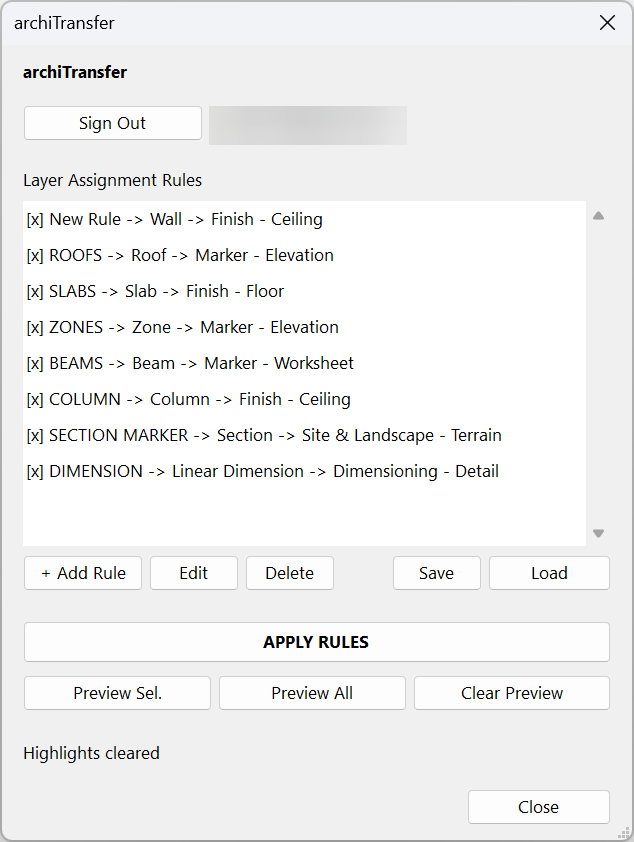
Main palette: Layer Assignment Rules list with Add, Edit, Delete, Save, Load, Apply Rules, and Preview options.
Add New Rule: set Element Type, Renovation filter, Criteria, and choose Target Layer, Favorite, Property, or Classification.
Edit Criterion: filter elements by property with operator and value (e.g. thickness < 0.20).
Select Favorite: browse the Favorites tree to apply all settings to matched elements.
Select Property: browse property groups like Main Construction or General Ratings to assign values.
Select Classification: browse the Archicad Classification tree to assign Wall, Column, or other types.
System Requirements
Try archiTools Core for €61/mo
Includes archiVisora credits, every add-on, every update, priority support.
Only need the Archicad add-ons? archiTools Atelier is €40/mo.
View pricingQuestions, answered.
When would I actually use this?+
Template migration (realigning an old project to a new layer scheme), file merging (cleaning up imported consultant models), and version upgrades (remapping classifications or properties that changed).
Can I save rules and reuse them on other projects?+
Yes. Save any rule set once and load it into future files. A well-built migration ruleset pays for itself on the second project.
Which Archicad versions are supported?+
Archicad 27, 28, 29, and 30 on Windows 10/11 or macOS 14+.
What can a rule change?+
A rule can move matched elements to a specific layer, apply a Favorite (which brings all settings and attributes), set or update a property value, or assign a classification from the Archicad tree.
Can I preview before applying?+
Yes. Matched elements highlight blue in both 2D and 3D views before you commit. Verify the rule caught the right things, then apply.