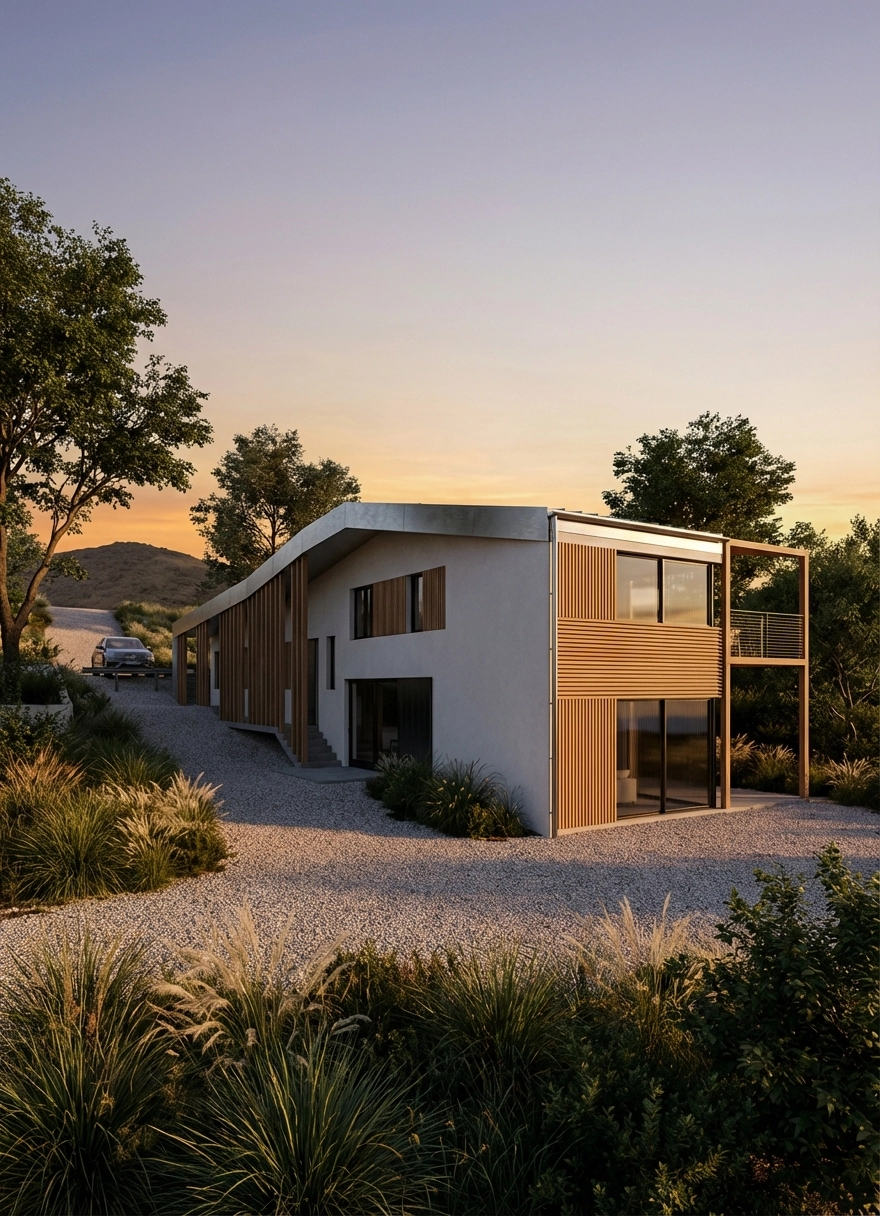
Your viewport, rendered.
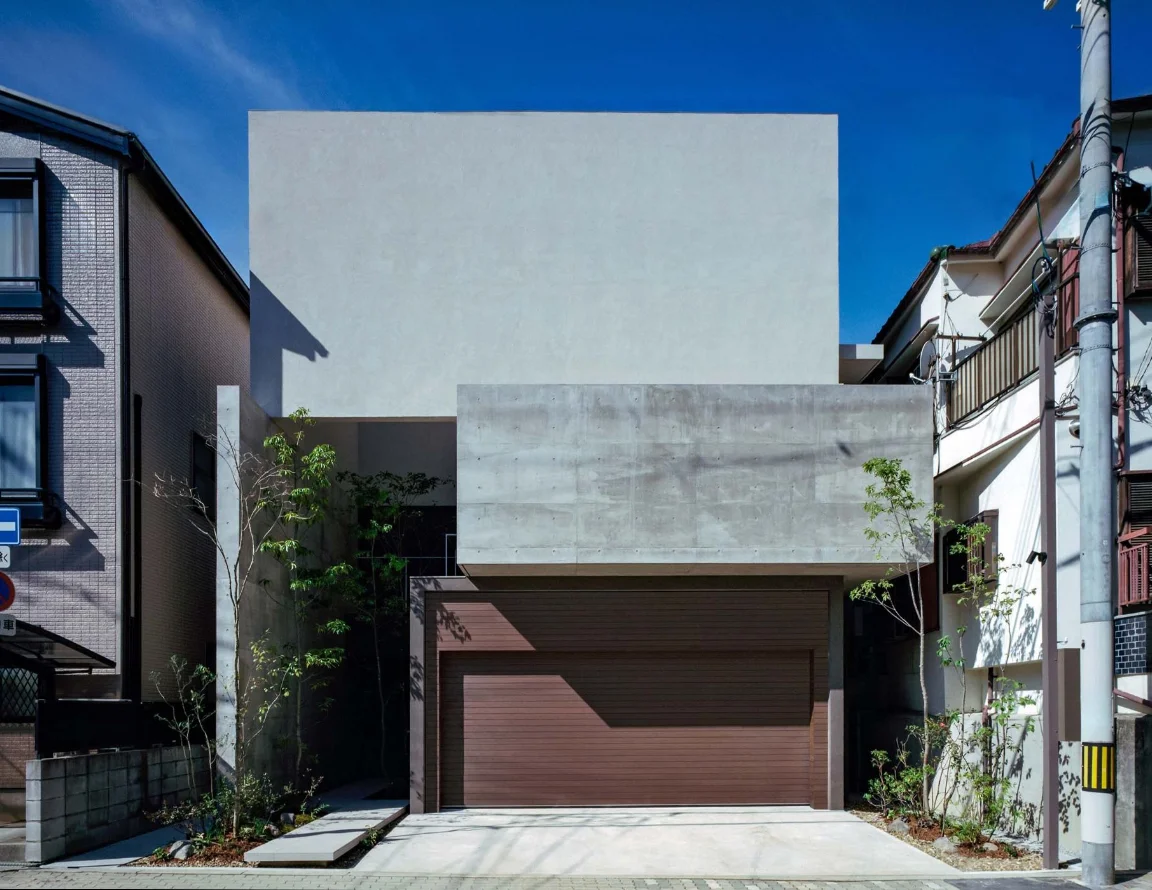
Capture a view in Archicad, Rhino or SketchUp and get a presentation image in seconds. Sketch on the result to direct the next pass, and lay every option out on a Board your team works on with you. Bring your own models, scans and real site context.
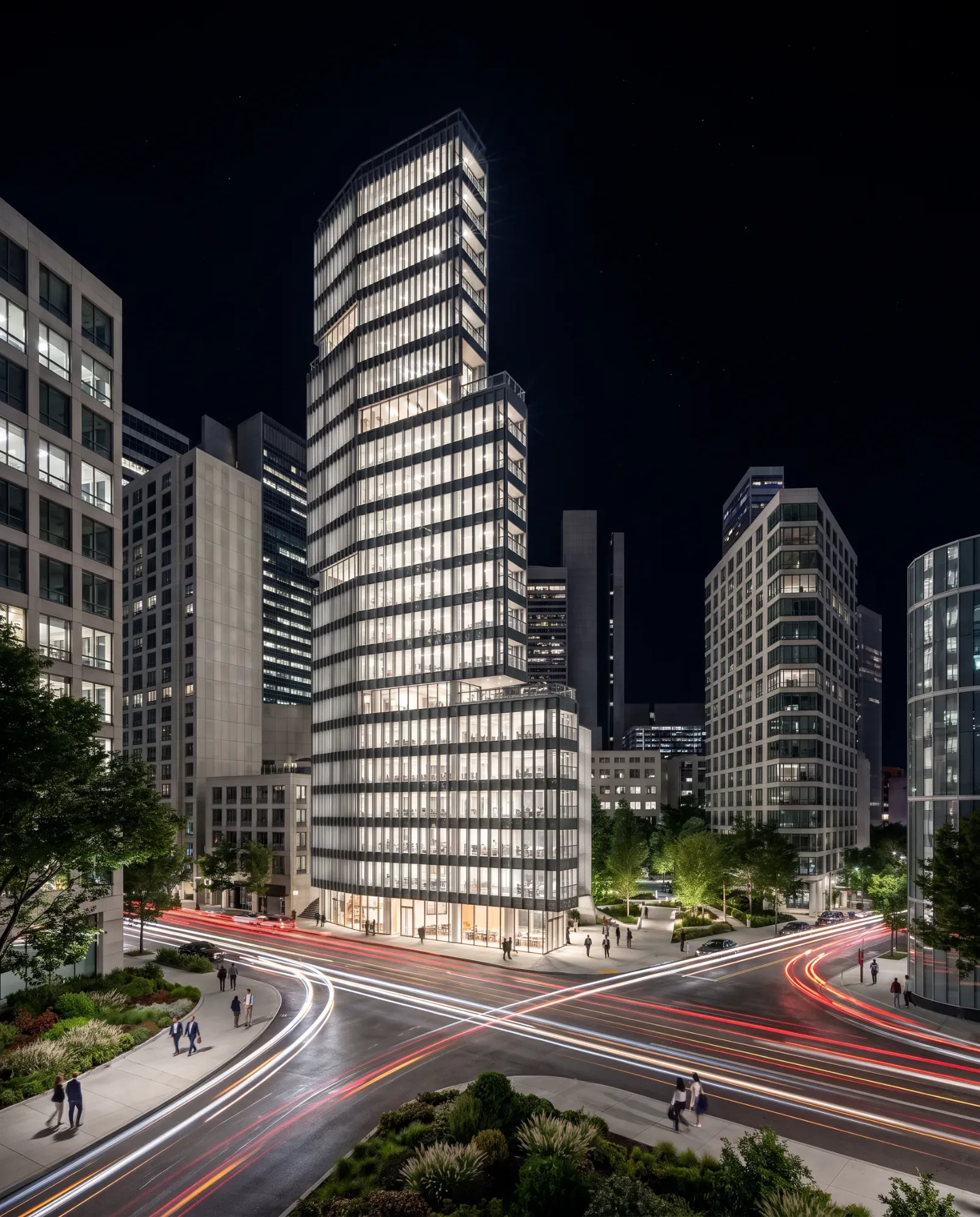
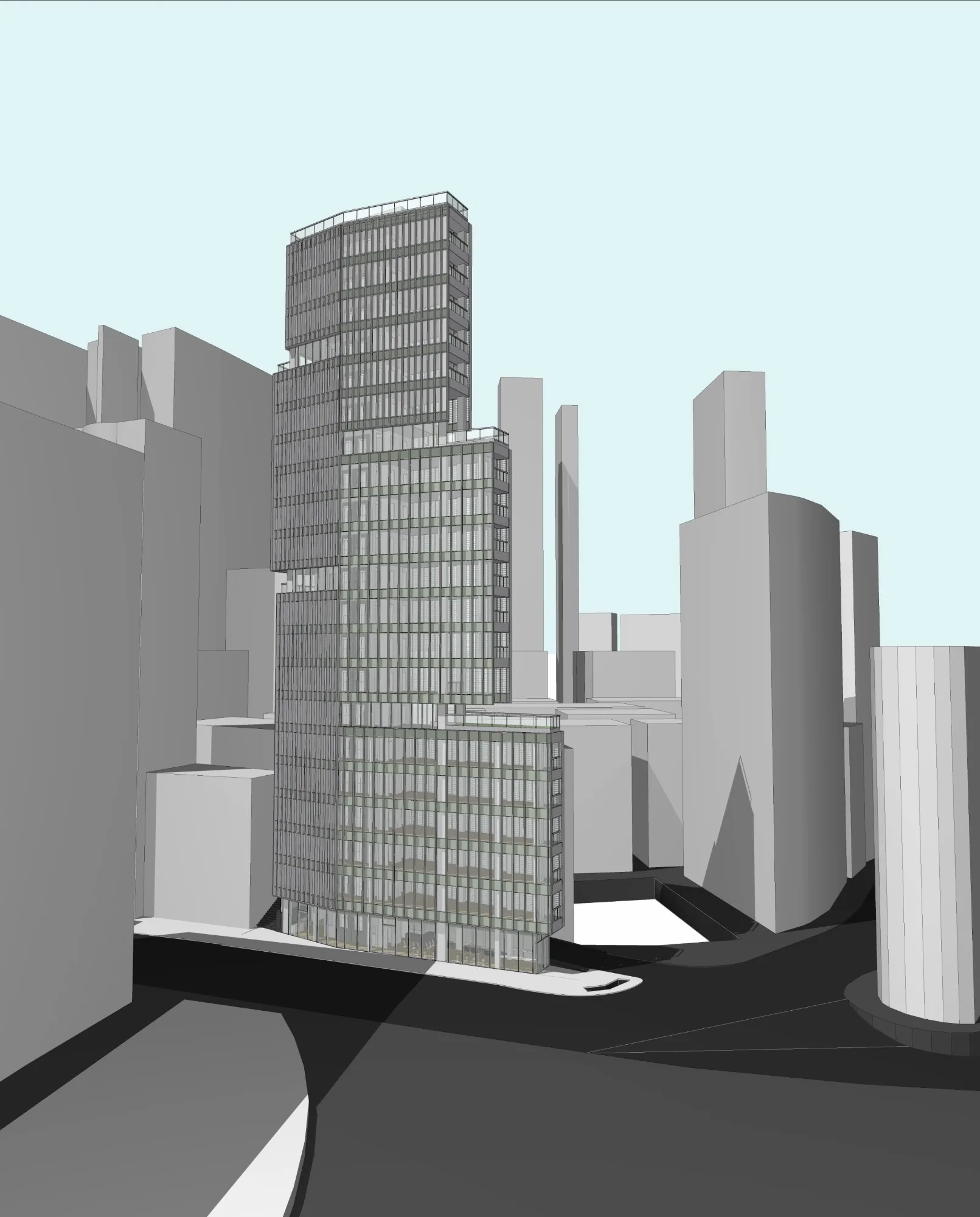
Drag the handle · one capture, one generation
One model, five styles.
Never leave your modeling software.
The plugin docks inside Archicad, Rhino, SketchUp, 3ds Max and Blender, with Revit 2026 on the way. One button captures the active 3D viewport and sends it to archiVisora; the render comes back while you keep modeling. No exports, no screenshots, no file juggling.
The model can travel too. Send a small model from your modeling app onto a board, look around it in the 3D viewer, and bring it into Rhino or 3ds Max as a locked reference layer. It's made for lightweight models you want next to your own, not for moving a whole project between applications.
- Viewport capture with one click
- Six host apps, one identical panel
- Renders return into the same panel
- Same account and credits everywhere
- Small models travel between apps as references
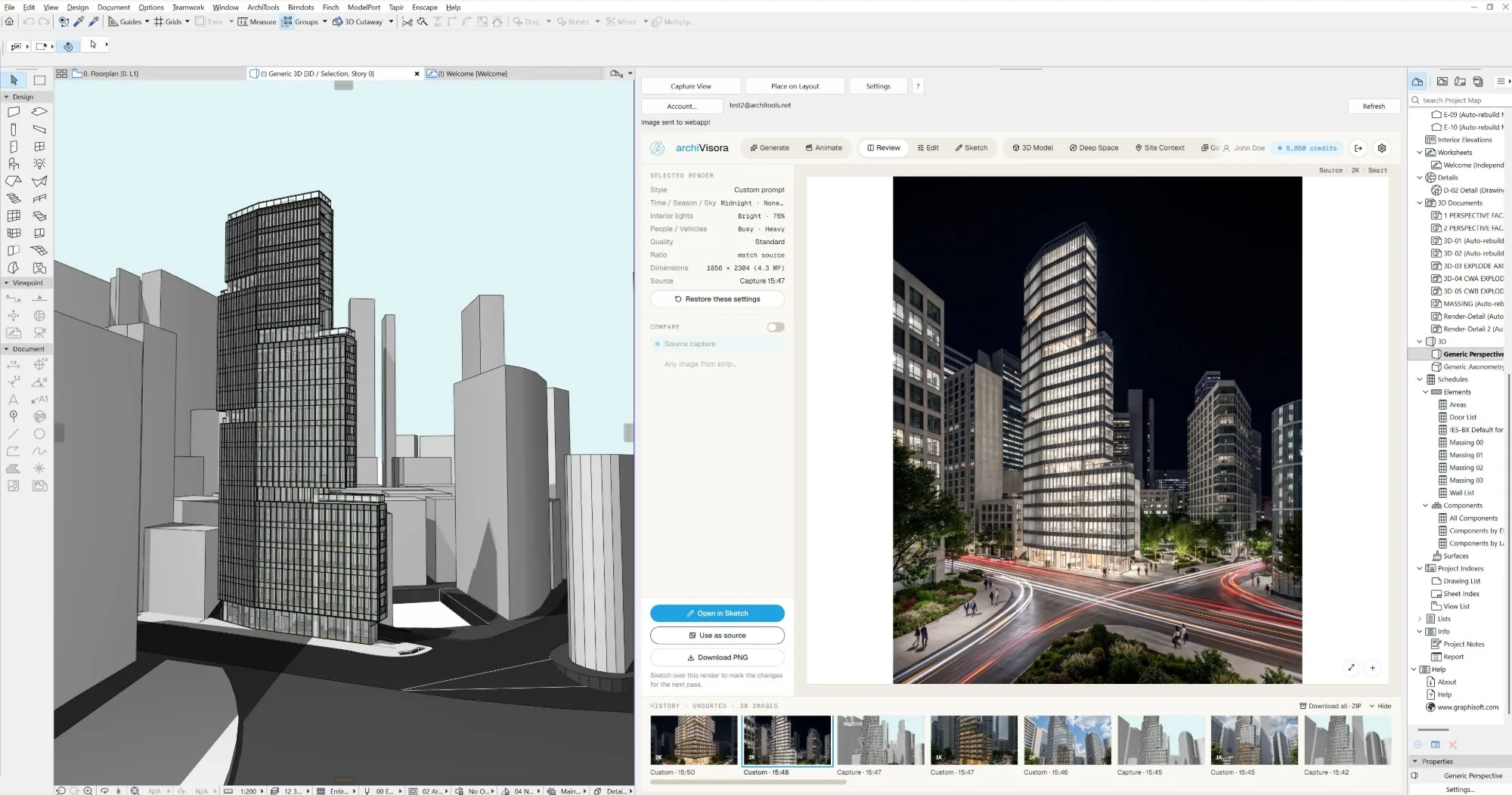
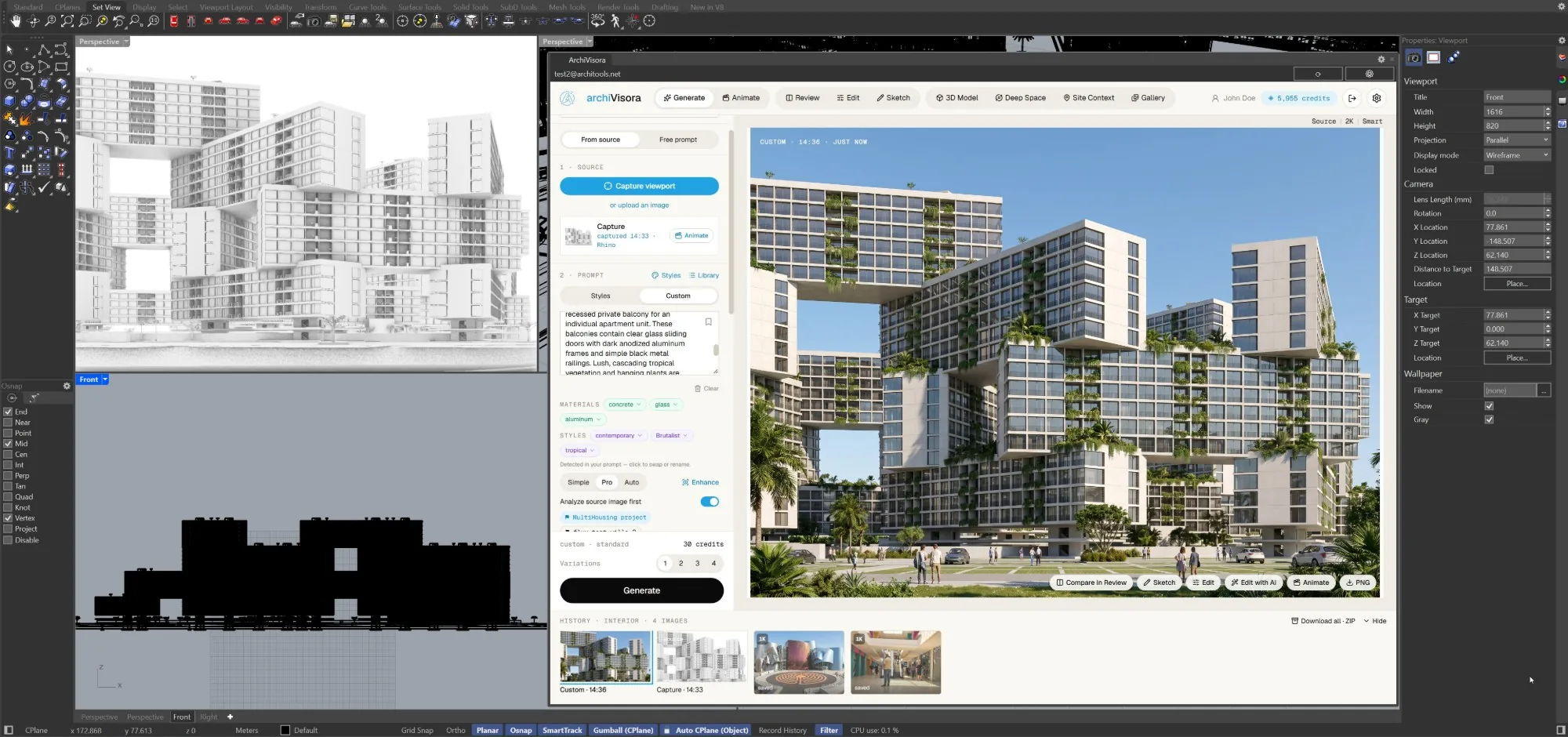
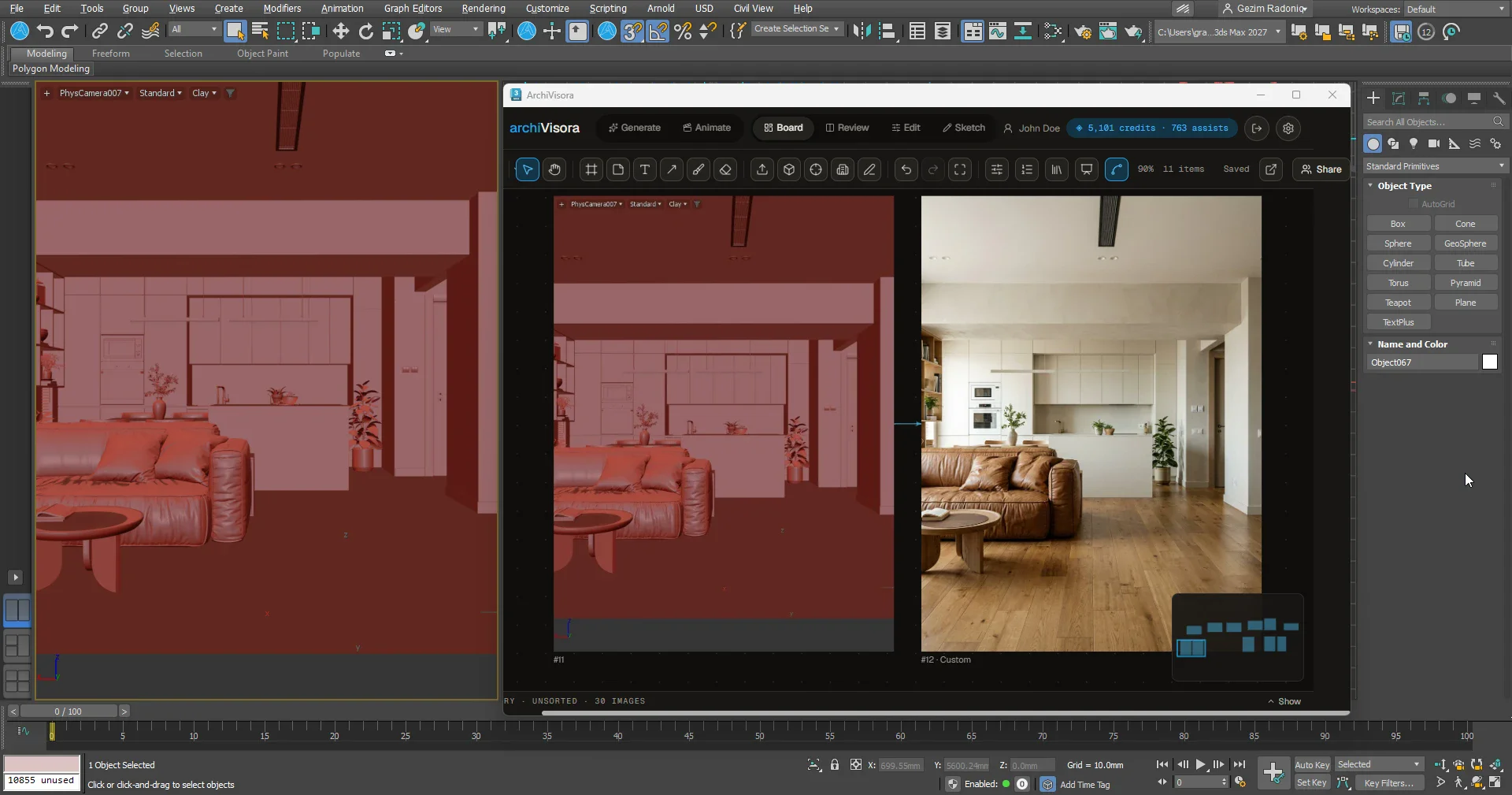
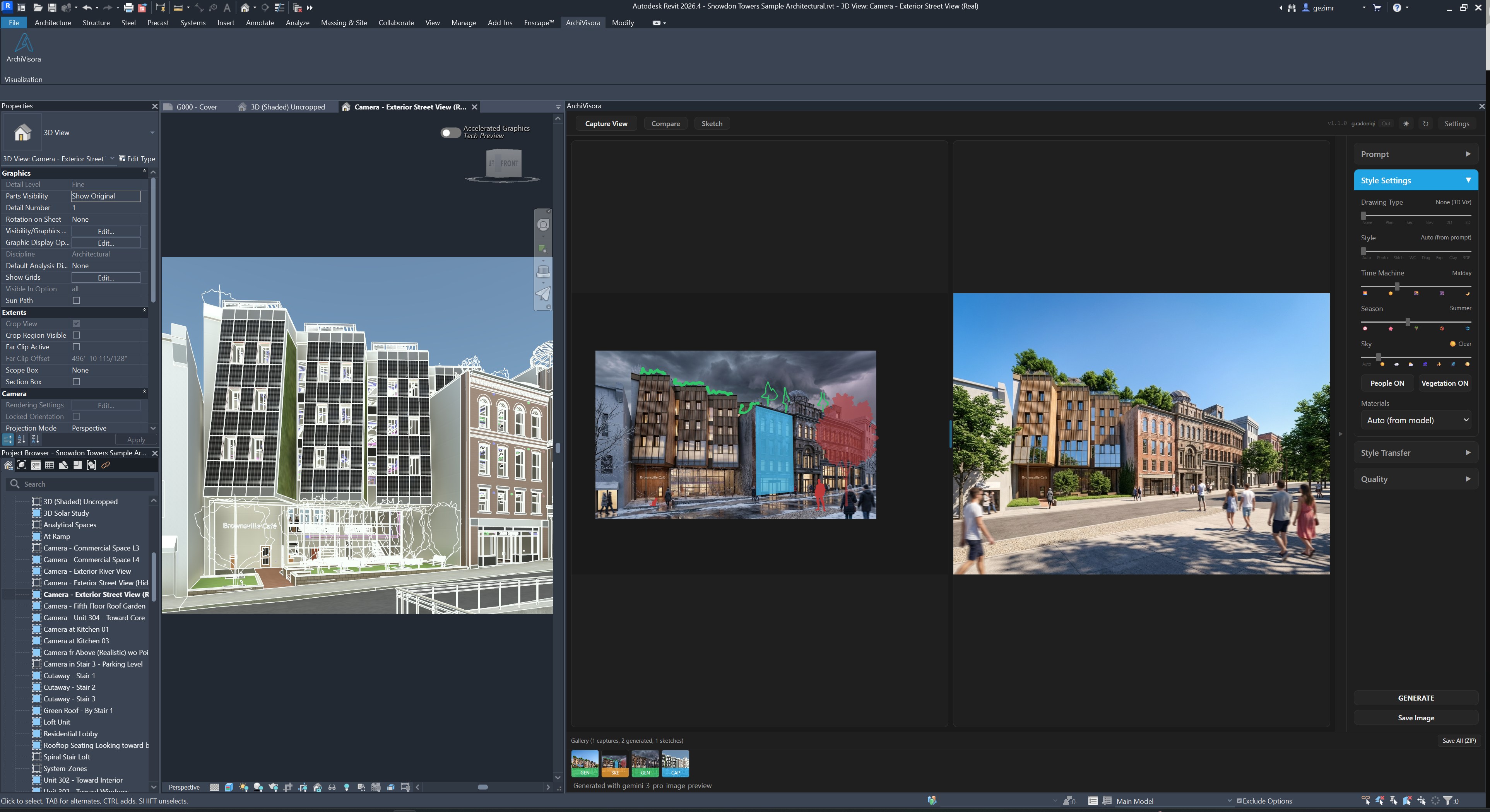
Inside Archicad
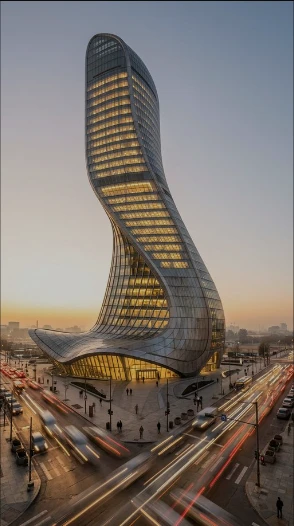
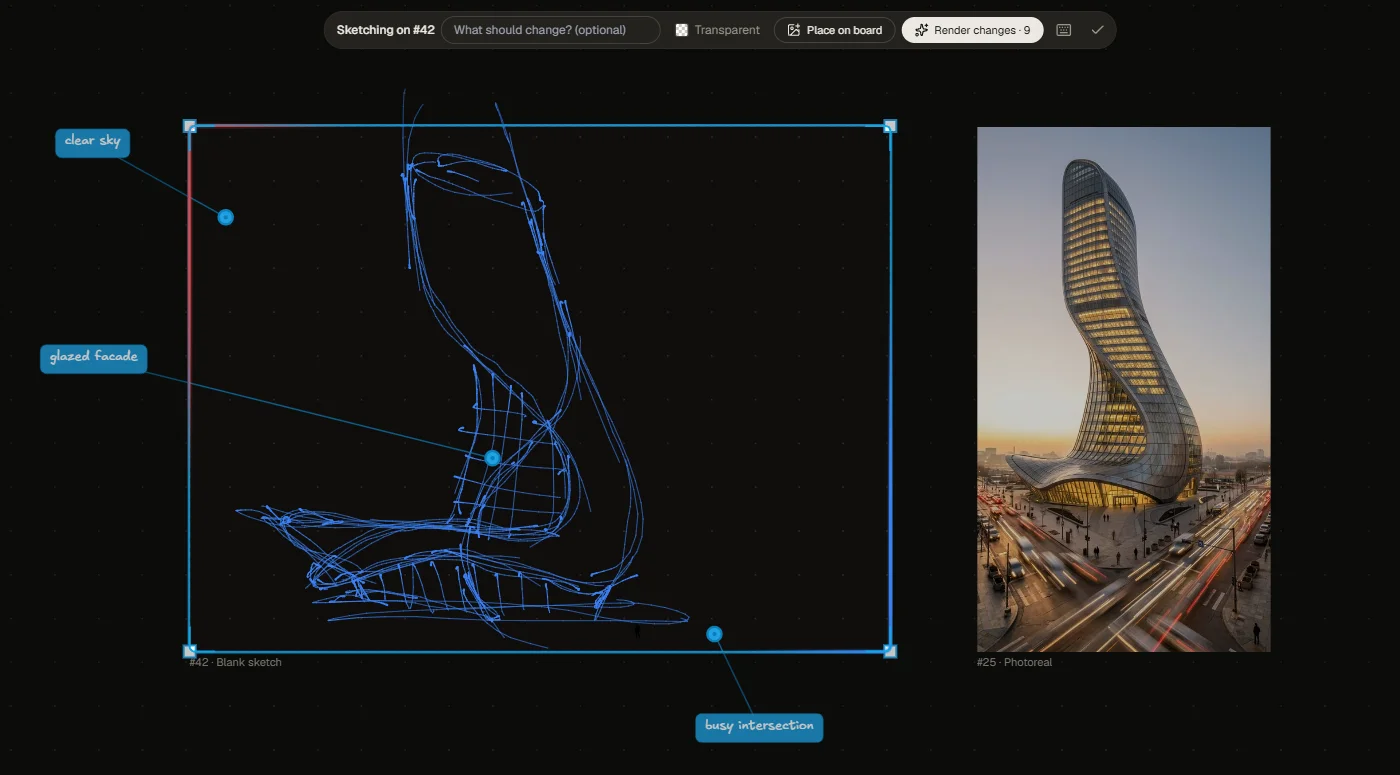
Draw the change, get the render.
Draw straight onto a generated image — trees along the approach, people on the terrace, a different roofline — and regenerate with the change applied. Pin an instruction to one region with a Smart Note and the rest of the render stays exactly as it was.
Hover the prompt strip to dissolve between the sketch and the result it produced. The same canvas takes imported DXF and Rhino drawings, and the editor handles crop, colour grading and touch-ups without spending credits.
Change the materials, keep the design.
Turn any render or reference photo into a material board, a sheet of samples of every material in it, each one named. Or bring your own moodboard: archiVisora reads its materials and matches each one to a surface of your render, from the facade and roof to the floor and the window frames.
You check the pairing before any credits are spent. Change a surface, swap a material, or drop in a swatch from your project library, then render. The building keeps its form and only the materials change.
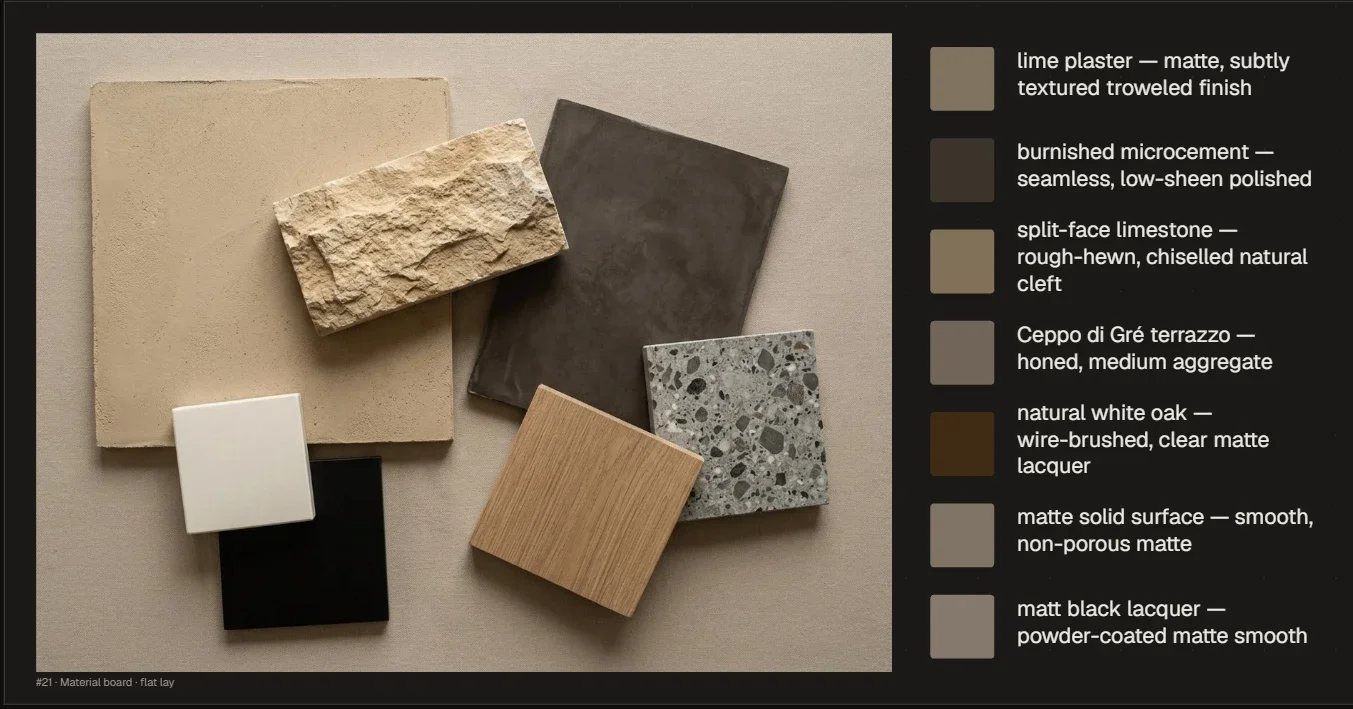
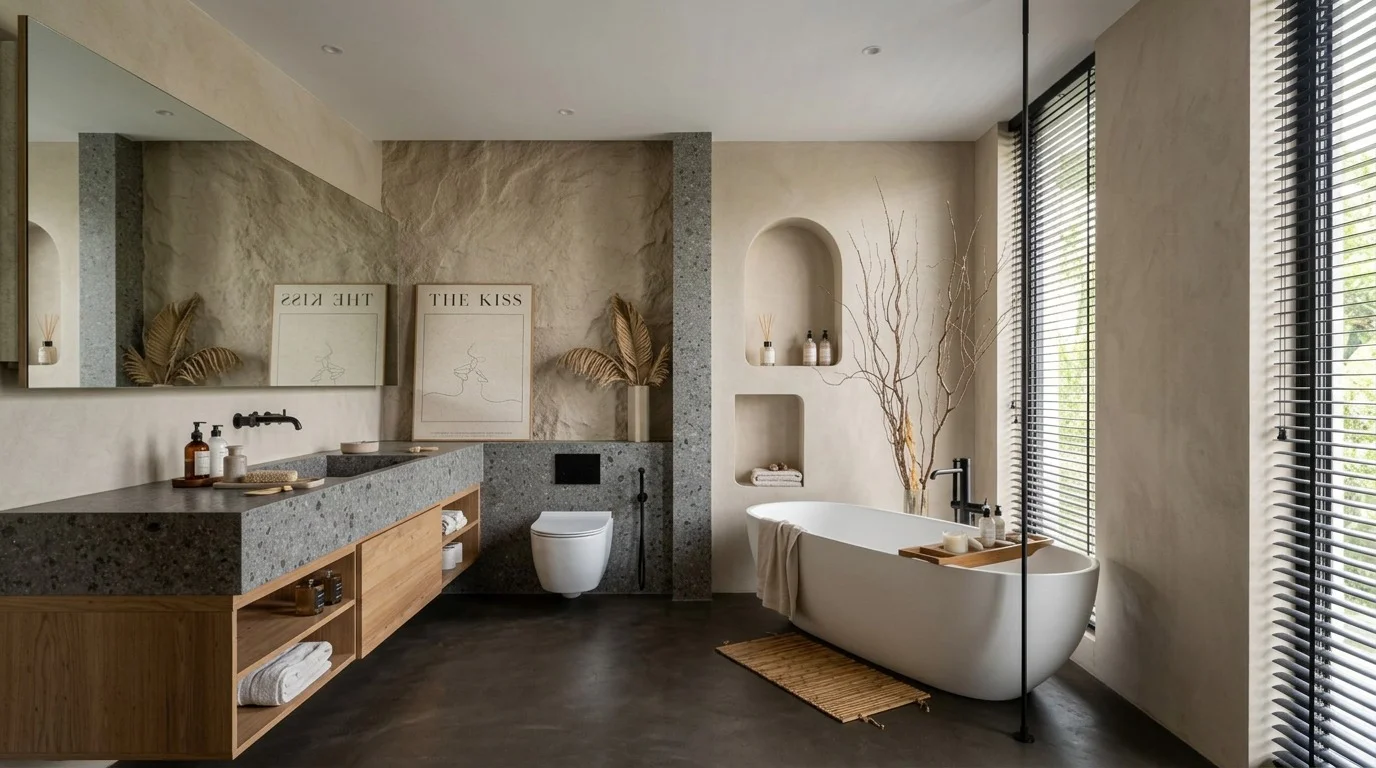
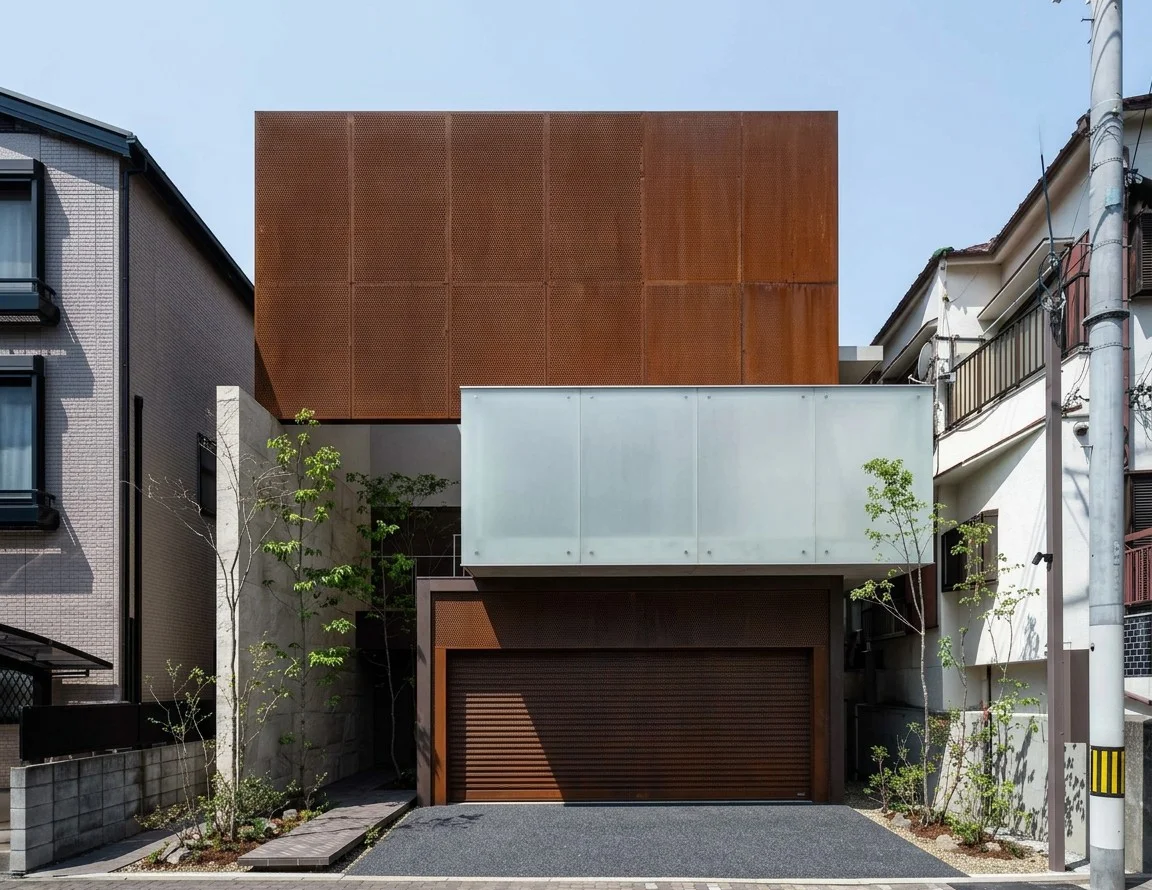
A material board generated from the photo
Your whole design process, on one canvas.
Captures, renders and references sit side by side on one board per project. Render, sketch, edit, crop or animate any image right where it is: the result lands beside it, joined to the one it came from, so every option keeps its history.
Share it with your team and work on it together. Everyone's changes appear as they're made, with their name on their cursor.
- Every step numbered and joined to what it came from, with a timeline to retrace it.
- Invite your team: see who's on the board and where they're pointing, live.
- Present the starred images, or share a view-only link with a client.
- On a computer, an iPad or your phone, sketching included.
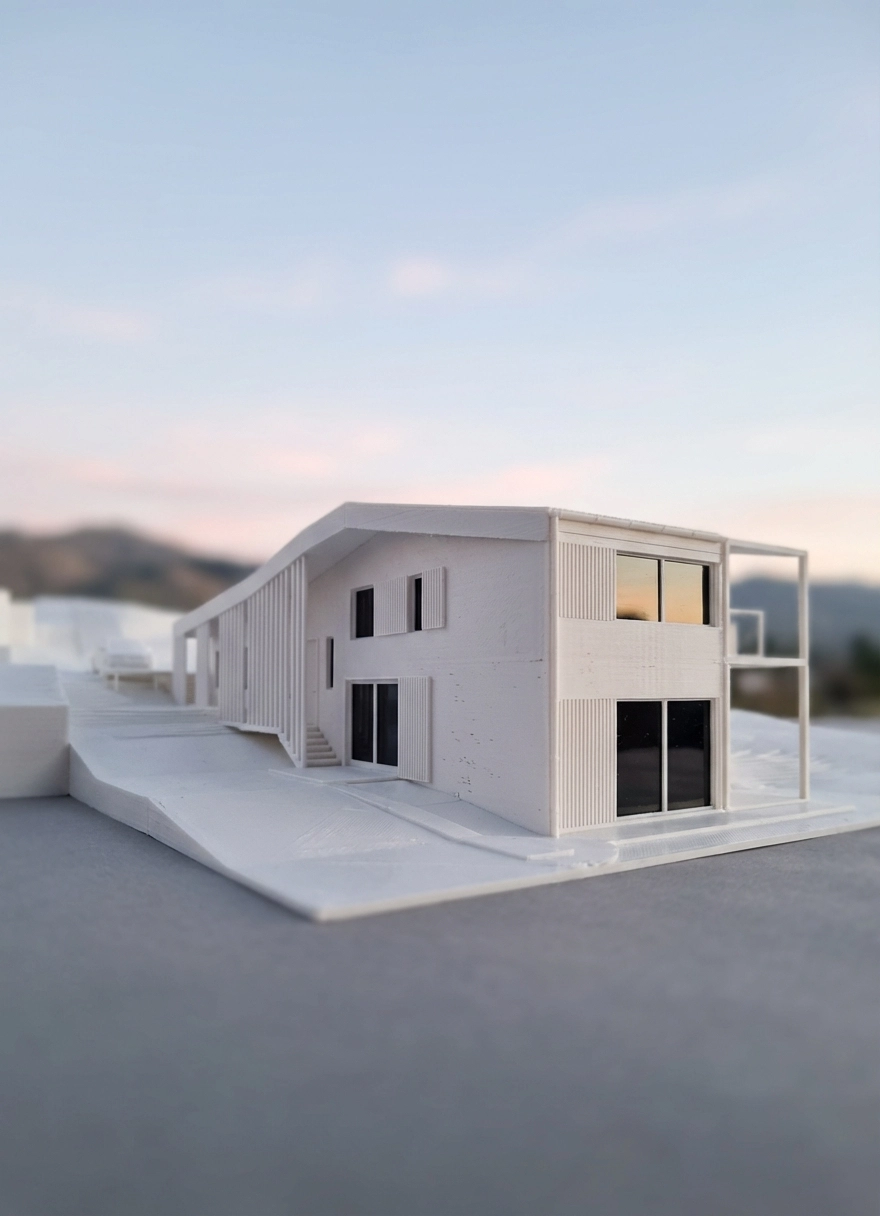
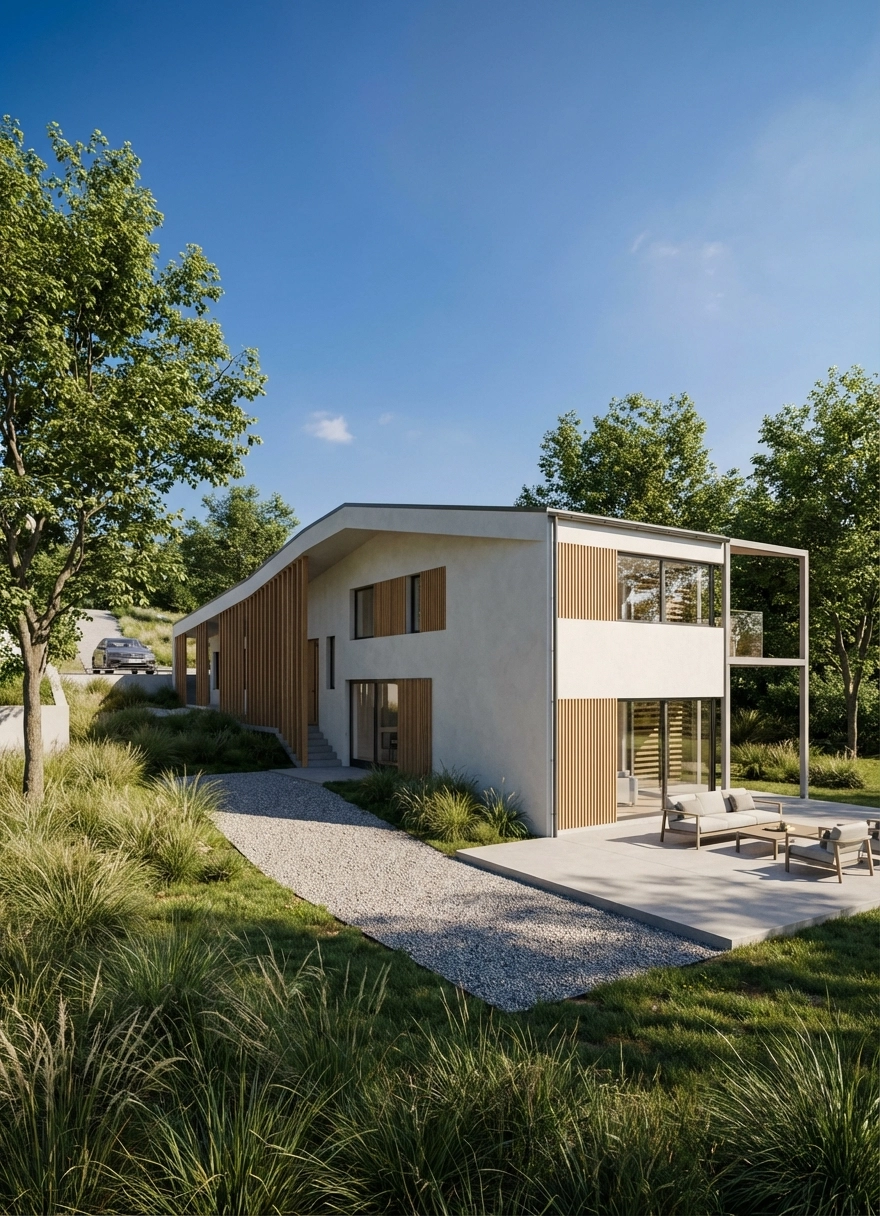
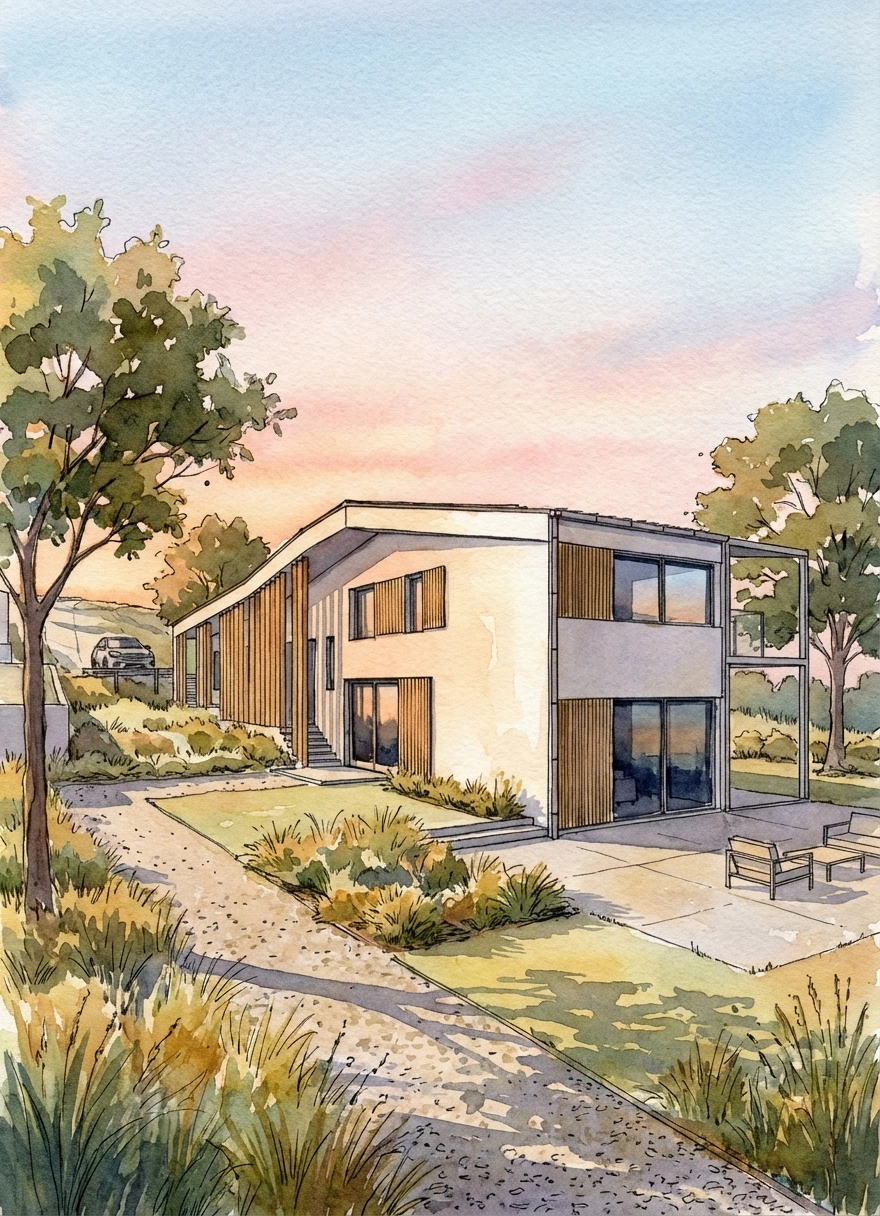
Renders that move.
Animate turns any render or image into a short clip with sound — the camera drifts through the scene, light shifts, the surroundings come alive. Four, six or eight seconds, in 16:9 or 9:16. Made for competition boards, client meetings and reels.
Bring real geometry and real places.
When a flat capture is not enough, work in true 3D: import your models, load scanned reality, and drop your design into its actual surroundings before you render.
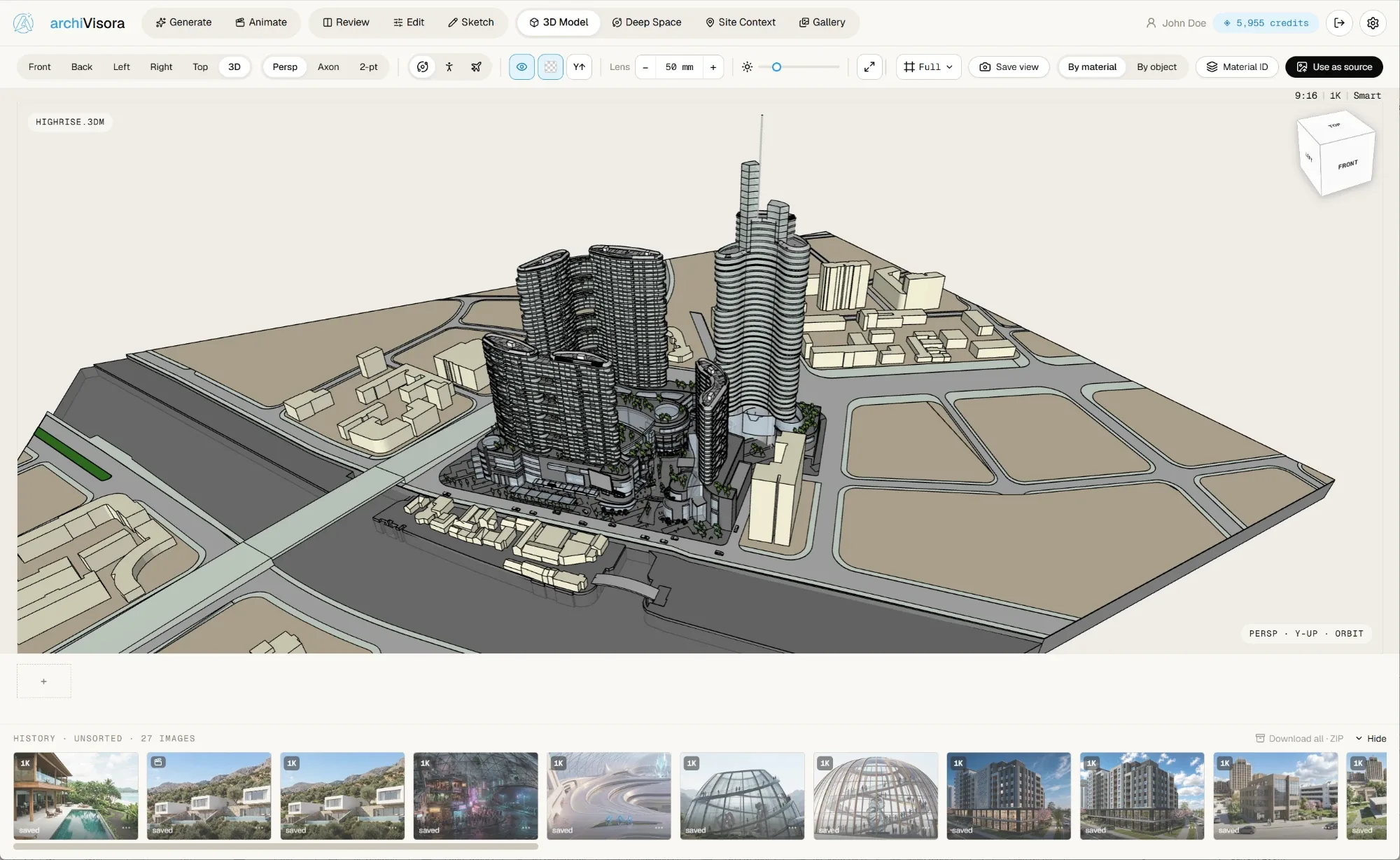
3D model import
Load a model into the built-in viewer, orbit or walk through it, set the view and render from any angle. No plugin required.
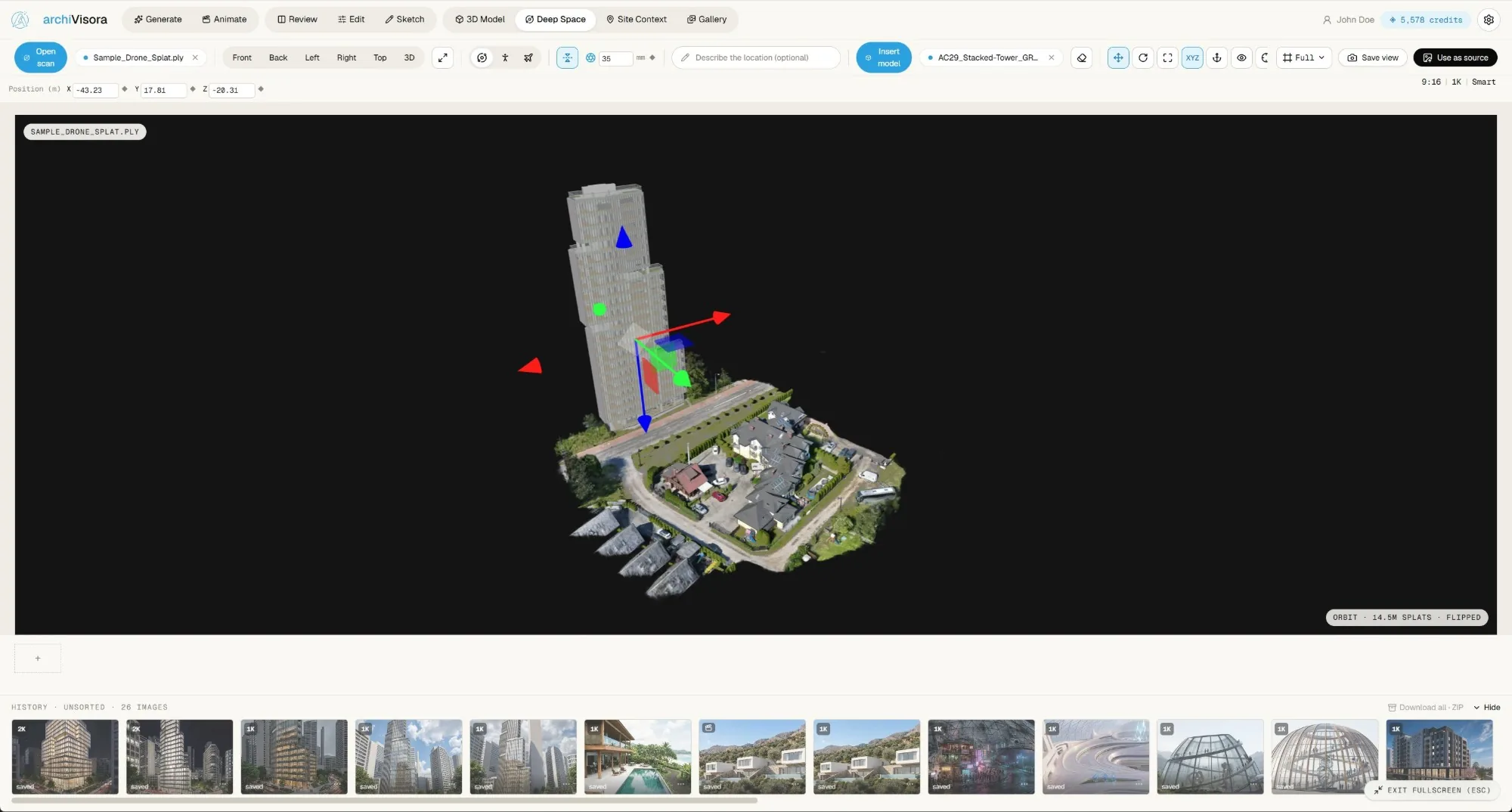
Deep Space
Move through a photoreal gaussian-splat scan of the real site, erase the building currently on the plot, place your model in its stead, and capture any viewpoint as a render source.
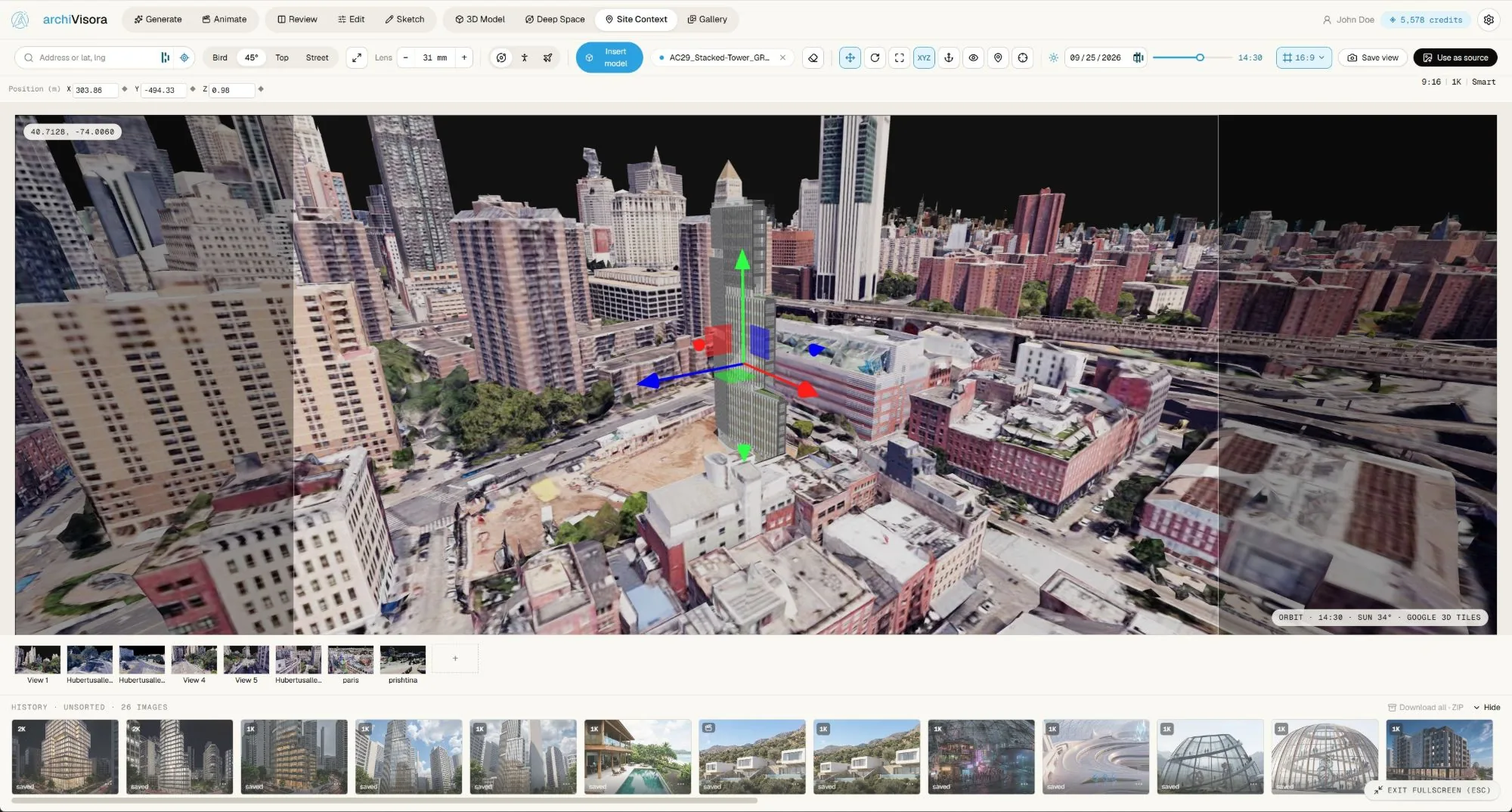
Site Context
Find the plot by address or coordinates, position the model on the real site, save the camera as a named view, and render the design in its actual surroundings.
Credits, not seats.
Every generation spends credits, and the cost is shown before you generate. Credits are shared across the web app and every plugin, never split by workstation, and you can cancel at any time and still spend what's left.
Full plans and credit packs60 welcome credits when you verify your account. No card, and the sketch tools stay open even after the credits run out.
Start free3,000 credits monthly, 2K renders, every plugin, sketch and edit with AI, 3D and site context.
Choose ProPlans from €19/month · academic pricing available
The next render is seconds away.
Free credits on signup. Works in the browser or in your BIM/3D software.
System Requirements
Try archiTools Core for €61/mo
Includes archiVisora credits, every add-on, every update, priority support.
View pricingQuestions, answered.
Which software does archiVisora work with?+
Archicad 27, 28, 29, and 30 on Windows 10/11 or macOS 14+. It also works inside Rhino 8 (Windows, via the Rhino Package Manager), SketchUp, 3ds Max, and Blender 4.2+ (which also runs on Linux), with a Revit 2026 plugin coming soon. It also runs in any modern browser on desktop and mobile. The same subscription and credits cover all of them: switch between them freely.
Is there a free trial?+
Yes. Sign up free and you receive welcome credits to try the full generation workflow, no credit card required. Without credits the Generate button is disabled, but the interface and sketch tool remain explorable.
How do credits and resolution work?+
Each generation consumes credits; higher resolutions cost more. Starter supports up to 1K, Pro unlocks up to 2K, and Ultra and archiTools Core support up to 4K. Unused credits roll over within your plan terms.
What are AI assists?+
The smaller AI tools that help you set up a render: Smart Select, object cut-outs, prompt enhance, material reads and matches, Story planning, camera-angle depth and background removal. Each plan includes a monthly allowance of them: 300 on Starter and Academic, 500 on Pro, 800 on Ultra and archiTools Core. Most actions use one or two assists; heavier ones, like a cut-out sweep or a Story plan, use a few more. Once the month's allowance is used, each further assist costs 1 credit, and it starts again on the 1st. A signed-in account without a plan gets 50 a month to try them. Credit top-up packs add assists too (140, 350 or 640 by pack size). They are used once the month's allowance runs out, before any credit, and they expire with the pack's credits after 90 days.
What is the Board, and can my team work on it with me?+
The Board is a canvas for a whole design process: captures, renders and references side by side, each numbered in the order it was made and joined to the image it came from. Render, sketch, edit, crop and animate right on it, and present your starred images or share a view-only link. Invite people by email as editors or viewers: you see who's on the board and their cursors live, and everyone's changes appear as they're made. Whoever renders pays for that render with their own credits. Starter includes one board of up to 50 items; Pro and above have as many boards as you need. It works on a computer, an iPad or a phone.
Can I put my own material samples on a design?+
Yes. On the Board, Edit → Apply moodboard puts a moodboard's materials on a render's surfaces. Pick a moodboard picture or swatches from your project library, check which material goes where, then render with your Render settings at the usual price. On the Realistic look, the photos of your library swatches can go with the render too, so it matches each sample's real pattern and grain. That adds 2 credits per swatch photo, and you see the total before you render.
Can archiVisora make videos?+
Yes: the Animate tab turns any render or image into a short AI video clip, and can also generate from a text prompt. Clips run 4 to 10 seconds at 480p to 1080p depending on the motion style, in 16:9 or 9:16, with optional sound on Pro plans and higher. There's no separate video plan: any subscription with enough credits can animate. Cost depends on the motion style and length: roughly 76–426 credits for a 4-second clip, up to 852 for 8 seconds, and you'll always see the exact cost before you generate.
Are my generated images stored on your servers?+
Yes: your generations are saved to your private gallery (stored securely in Google Cloud and tied to your account) so you can revisit, download, and reuse them. We don't train AI on your content, and Google (our AI provider) doesn't either. You stay in control: download or delete any generation, or export or delete everything, anytime from your account. If you cancel, your gallery is kept for 90 days, with email reminders, then permanently deleted.
Can I cancel anytime?+
Yes. Credits are not a subscription lock: cancel and any remaining credits stay usable until they expire. No further charges from the next billing cycle.